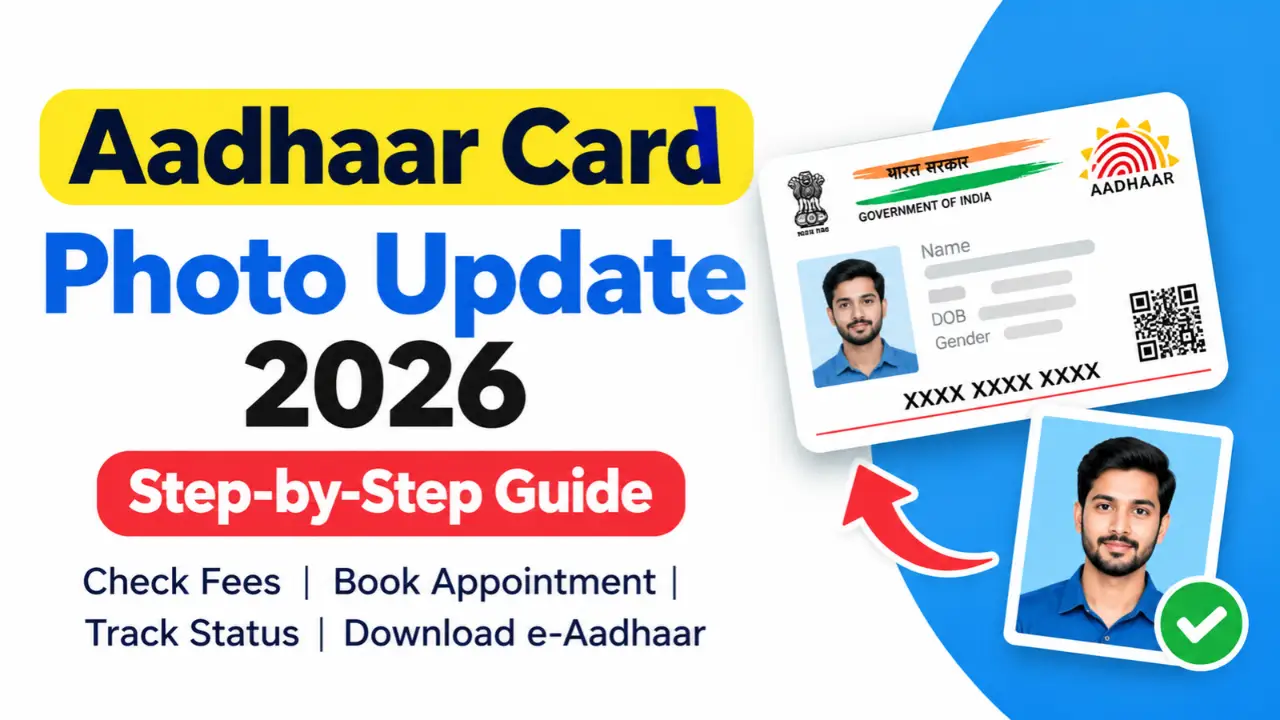
If your Aadhaar card has an old, unclear, or outdated photograph, you may want to update it. Many people search for how to change Aadhaar card photo online because they want to replace their existing picture without visiting an Aadhaar centre.
However, there is one important thing to know: you cannot complete an Aadhaar photograph update entirely online. According to the Unique Identification Authority of India (UIDAI), you must visit an authorised Aadhaar Enrolment Centre or Aadhaar Seva Kendra to update your photograph because it is part of your biometric information.
You can book an appointment online, visit the centre to have your photograph captured, and check your update status afterwards.
In this article, you will learn how to change your Aadhaar photo, book an appointment, check the applicable fee, and download your Aadhaar card after the update.
How to Change Aadhaar Card Photo in 2026
Step 1:- First, go to the official website by clicking on the link provided above.
Step 2:- Once you are on the official website, scroll down and you will see an option to ‘Book an Appointment’; click on it and proceed.
Step 3:- A short form will now appear on your screen, where you need to enter your full name and the mobile number linked to your Aadhaar. Fill in the captcha code and click on the ‘Send OTP’ option. An OTP will be sent to your registered mobile number; enter this OTP and click on the ‘Authenticate’ option.
Step 4:- Next, you will see an option for ‘Center Appointment’; click on it. A short form will appear, in which you need to specify your age group. Under ‘Enrollment Type’, select the option for ‘Update Demographics, Biometrics, and Documents’, and then click on ‘Proceed for Center’.
Step 5:- Next, you need to enter your area’s PIN code and click on the ‘Search by PIN’ option.
Step 6:- Once you enter your PIN code, a list of all available Aadhaar centers in your area will appear. Select an Aadhaar Seva Kendra, choose your preferred date and time, agree to the terms and conditions, and then proceed.
Step 7:- The next page will then open, where you need to enter your full name, any mobile number, and the 12-digit number from your Aadhaar card. Once you enter your Aadhaar number, you will be presented with several options. Simply select the specific correction you wish to make to your Aadhaar card; for instance, if you want to change your photograph, you should select ‘Biometric Update’ and then proceed by clicking ‘Next’.
Step 8:- A summary page will now open on your screen; click on the ‘Confirm’ option and then confirm once more. Your appointment is now booked, and you will receive an acknowledgment slip. You can also download this slip by clicking on the ‘Download Acknowledgment’ option.
Step 9:- On the date and time you selected, arrive at the Aadhaar center with this appointment slip. Your work will be completed within 20 minutes, and you will be free to head home. Additionally, the photograph on your Aadhaar card will be updated within 7 days.
So friends, this is how you can book an appointment yourself and get the photograph on your Aadhaar card changed.
Can You Change Your Aadhaar Photo More Than Once?
Yes. UIDAI’s guidance states that there is no fixed limit on the number of times an Aadhaar photograph can be updated. However, each request must follow the applicable verification procedure and fee rules.
If your current photograph is outdated or unclear, you can visit an authorised Aadhaar centre and request another update.